A hackable ChatGPT-like code interpreter
Intro
I built my own ChatGPT-like code interpreter. It supports multiple LLM providers through LiteLLM (Claude, Gemini, GPT, etc).
The stack is pure Python: FastHTML for the web framework, DaisyUI for styling, HTMX for interactivity, and Modal for running code in isolated cloud sandboxes.
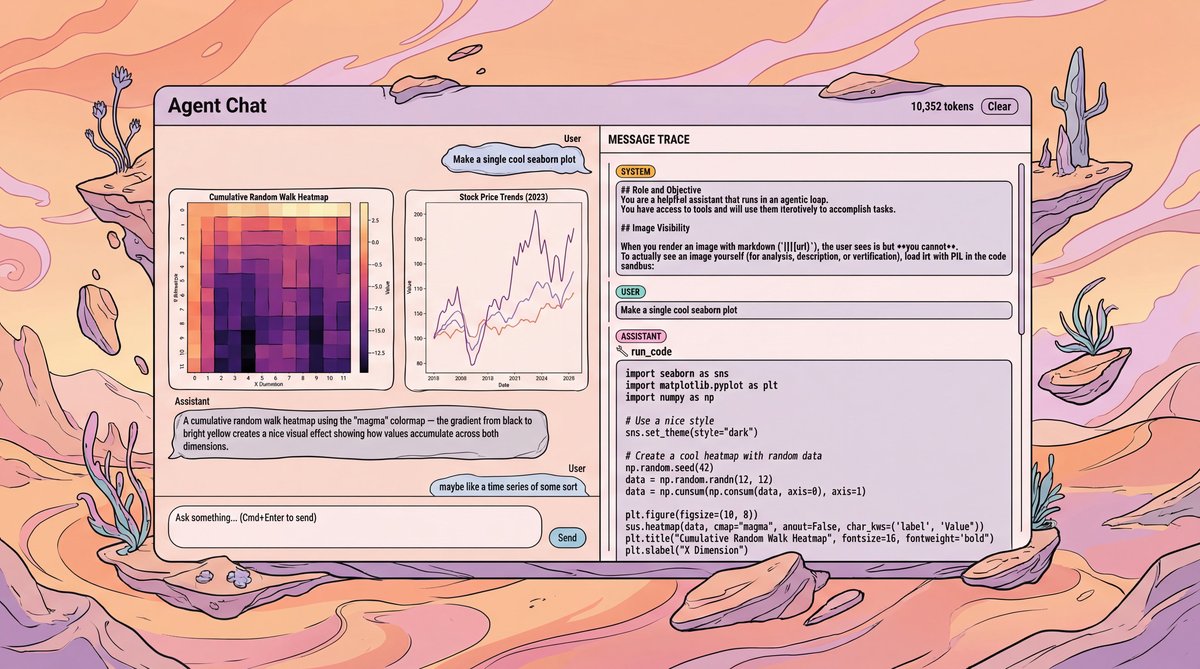
The result is a ChatGPT-like interface where you can see everything: the tool calls, the code being executed, and the images being generated.
All the code is at github.com/DrChrisLevy/fast-agent-demo.
What It Does
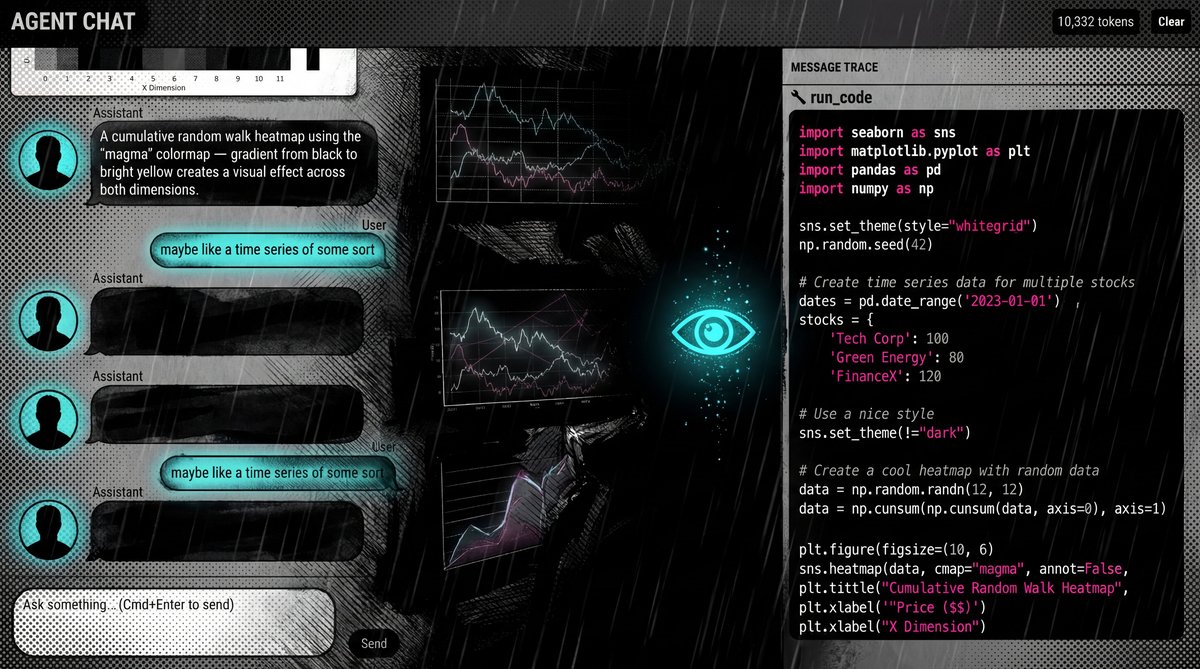
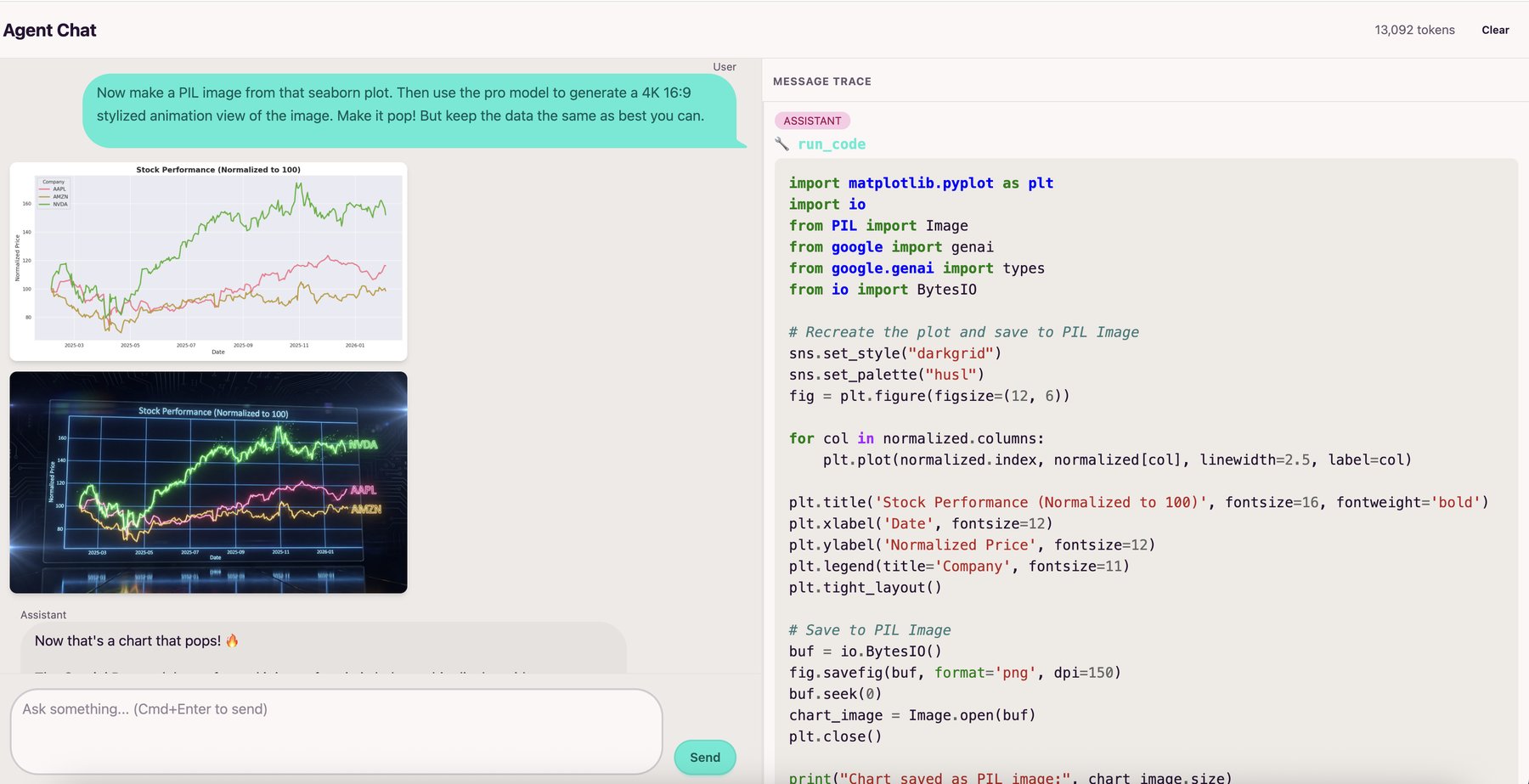
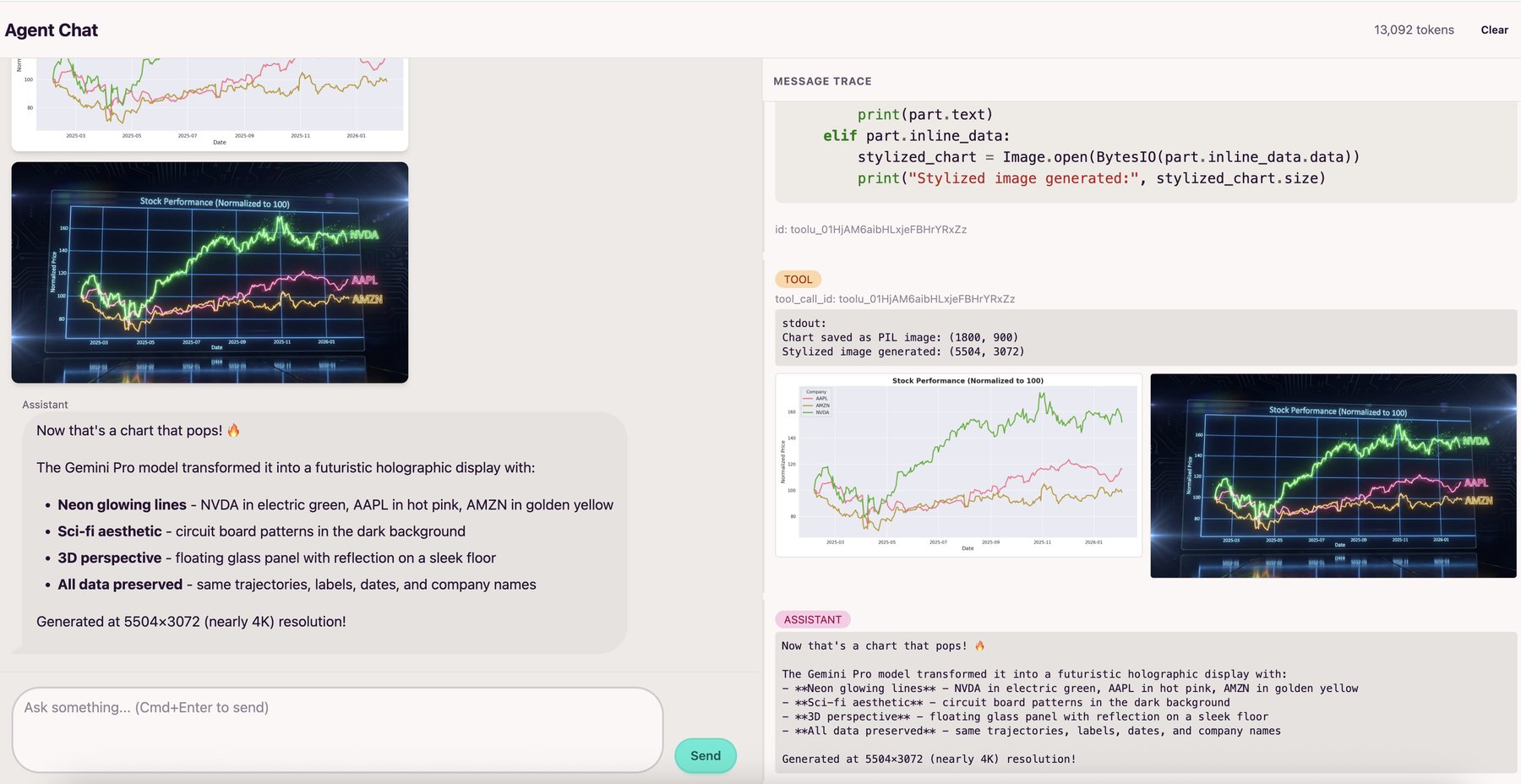
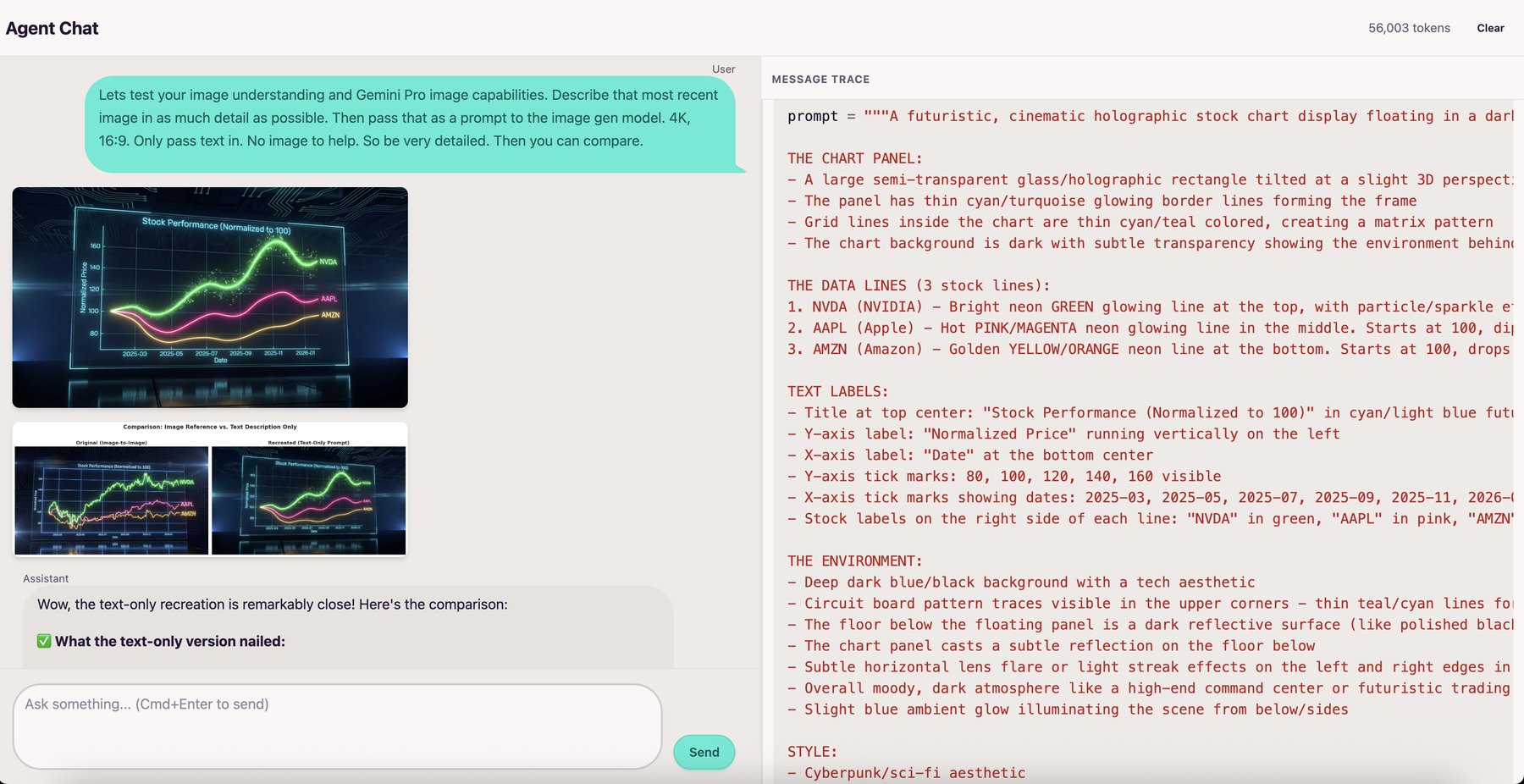
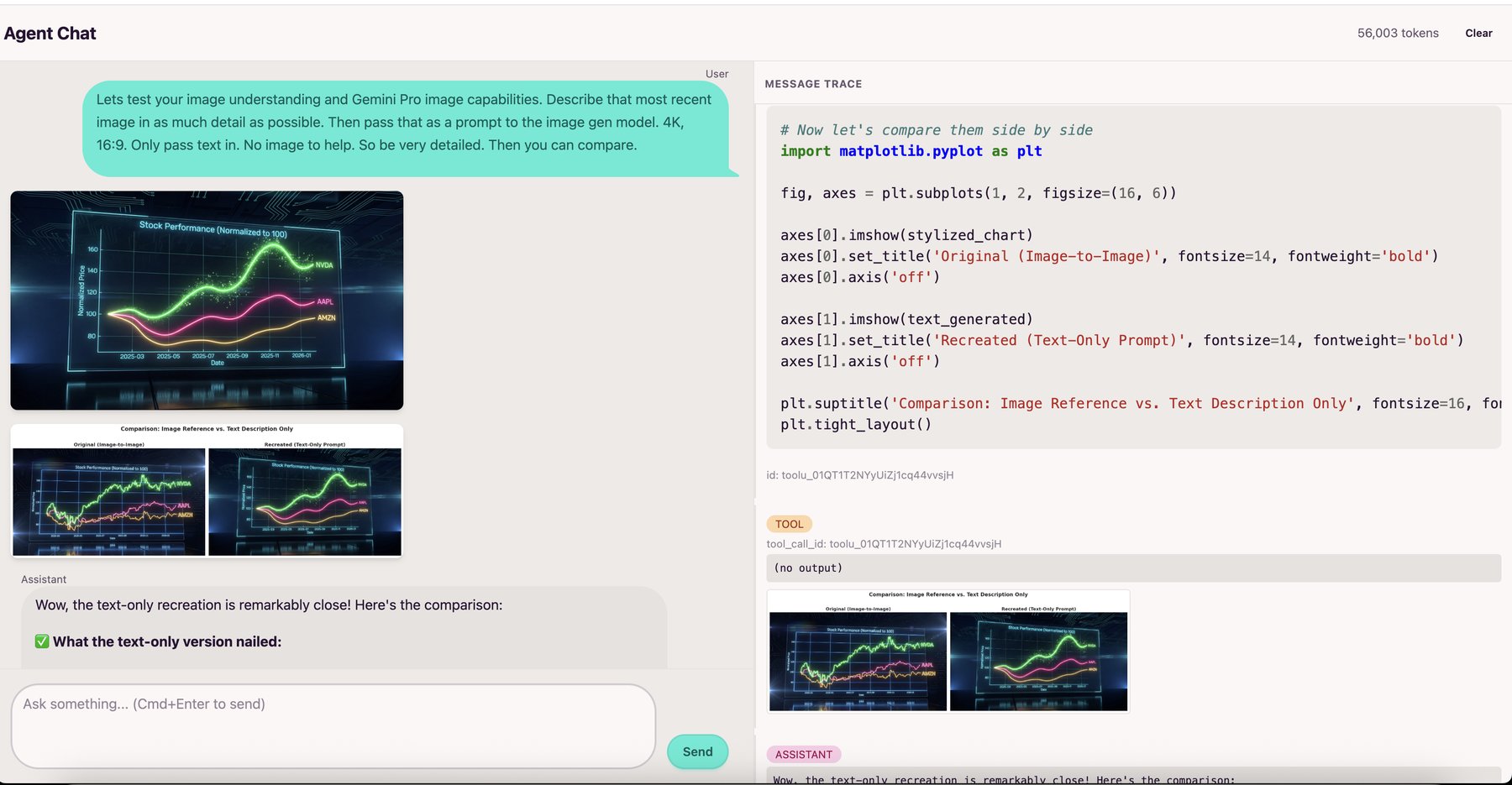
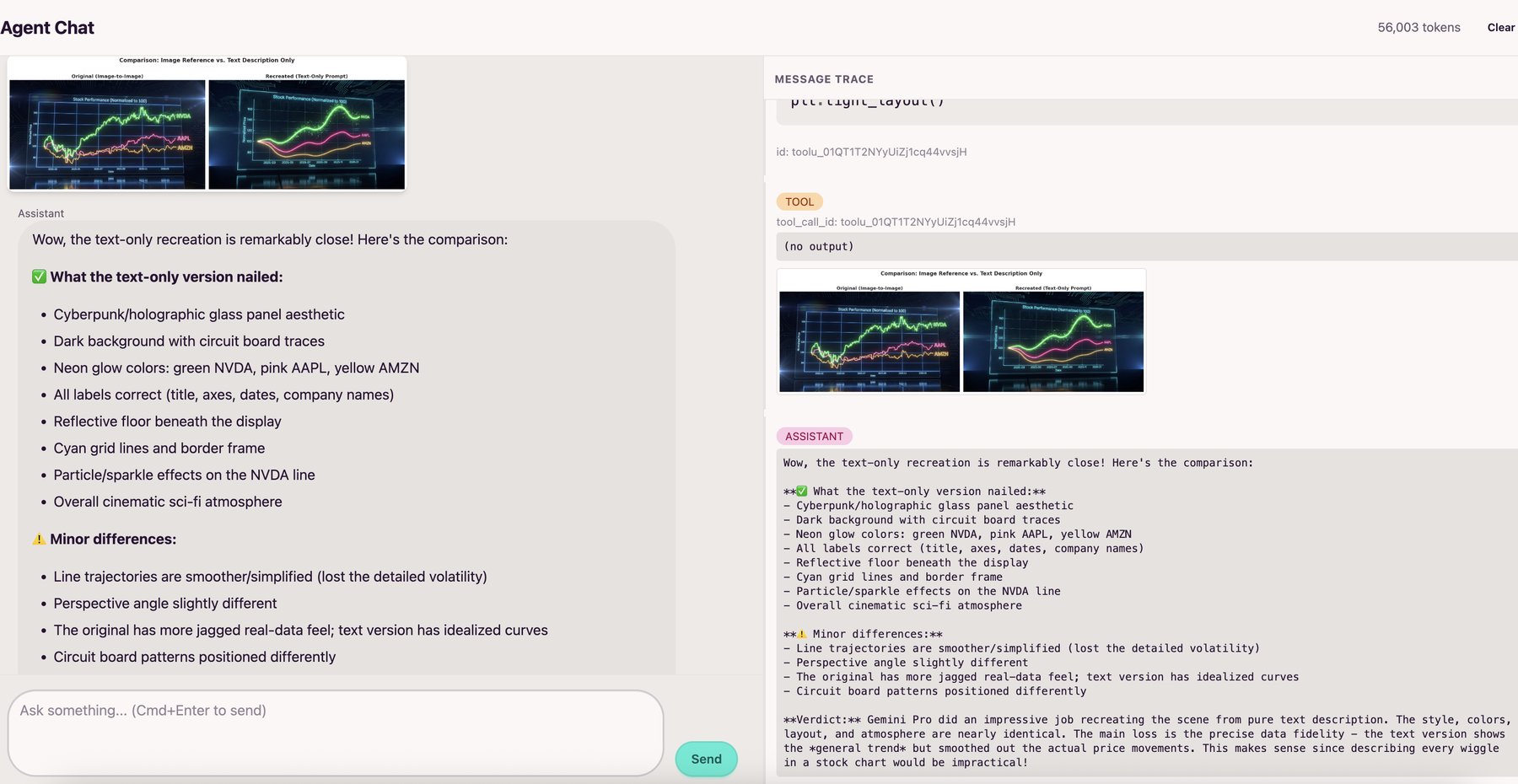
The idea of the app is that you have the typical ChatGPT like interface on the left, and on the right you can see all the tool calls and their results. It's a fun environment to explore the capabilities of the LLM and see all the inner workings of the Agent and tool calls.
The agent runs Python code in an isolated Modal sandbox. It can generate charts with matplotlib, seaborn, and plotly without touching your local machine.
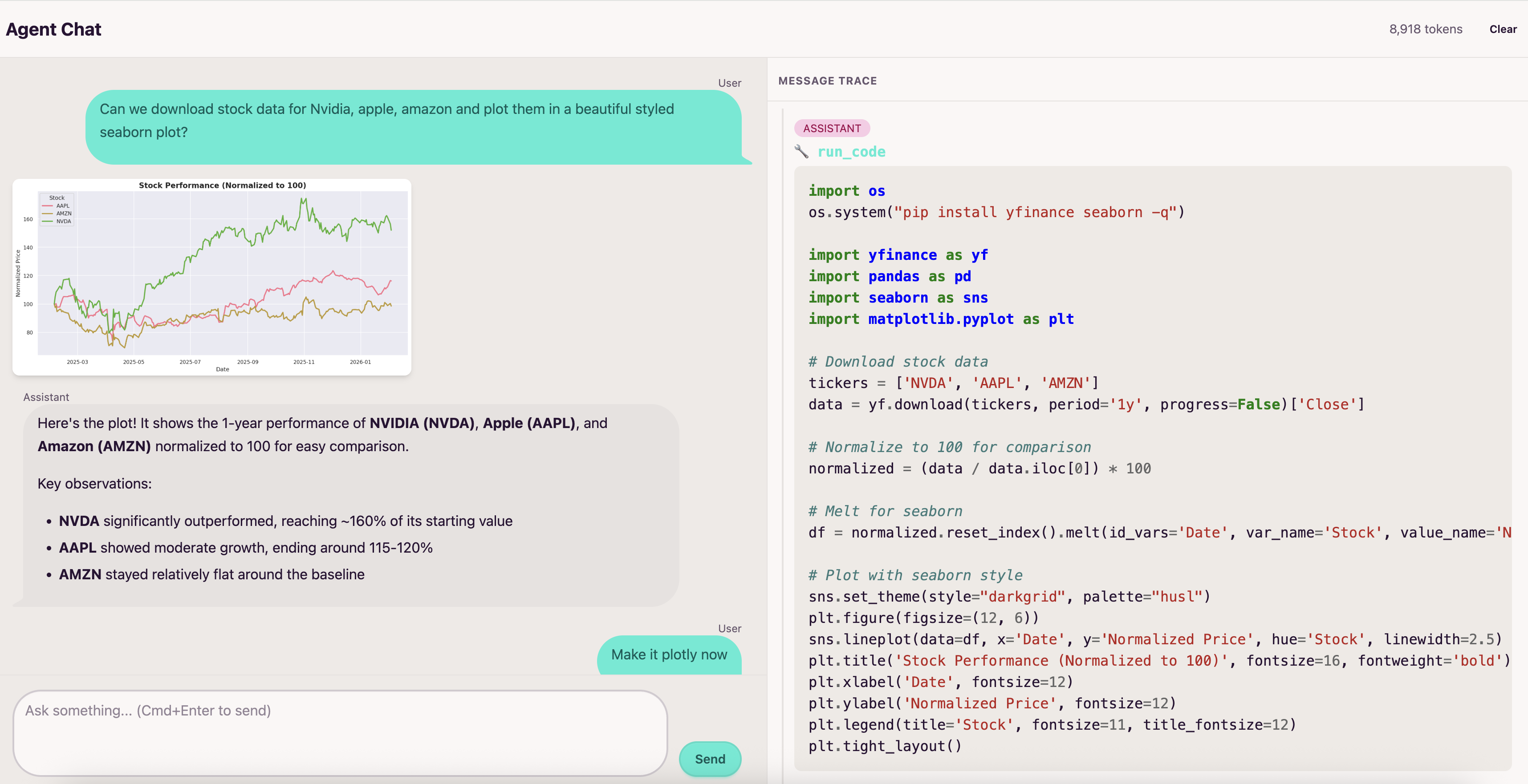
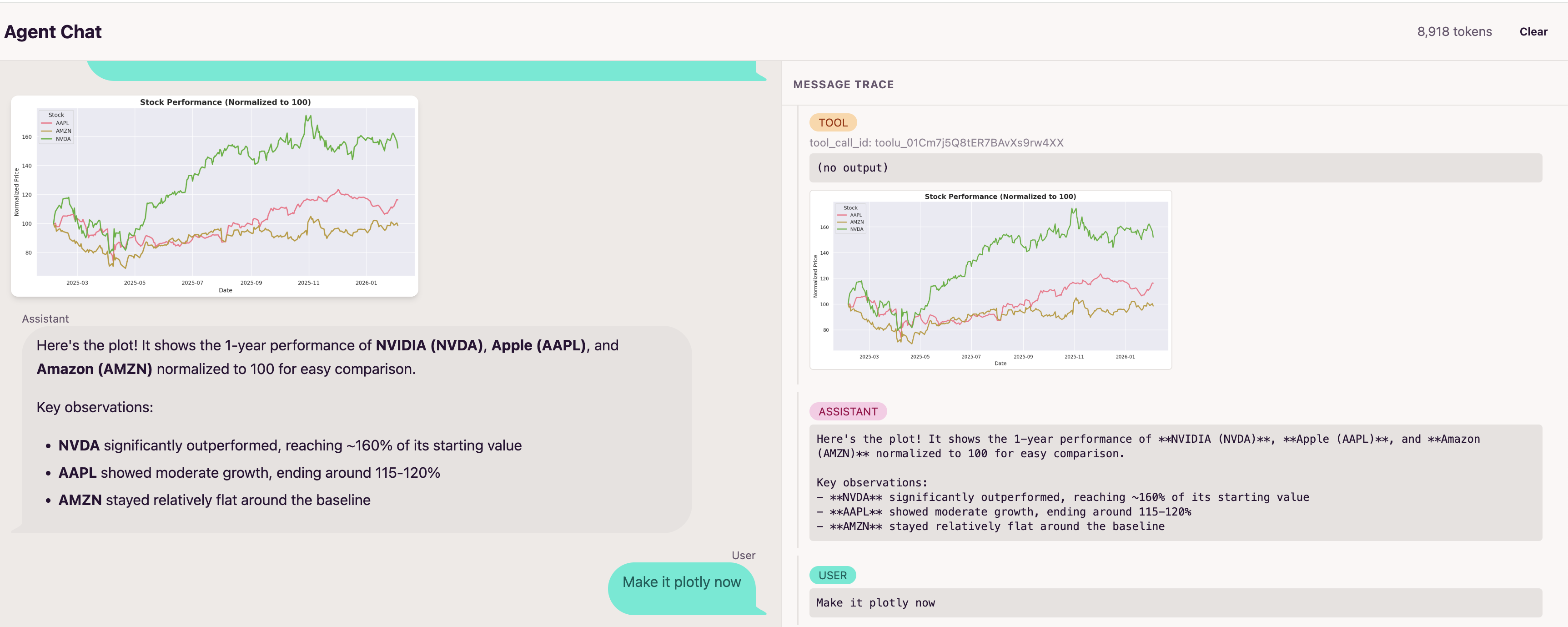
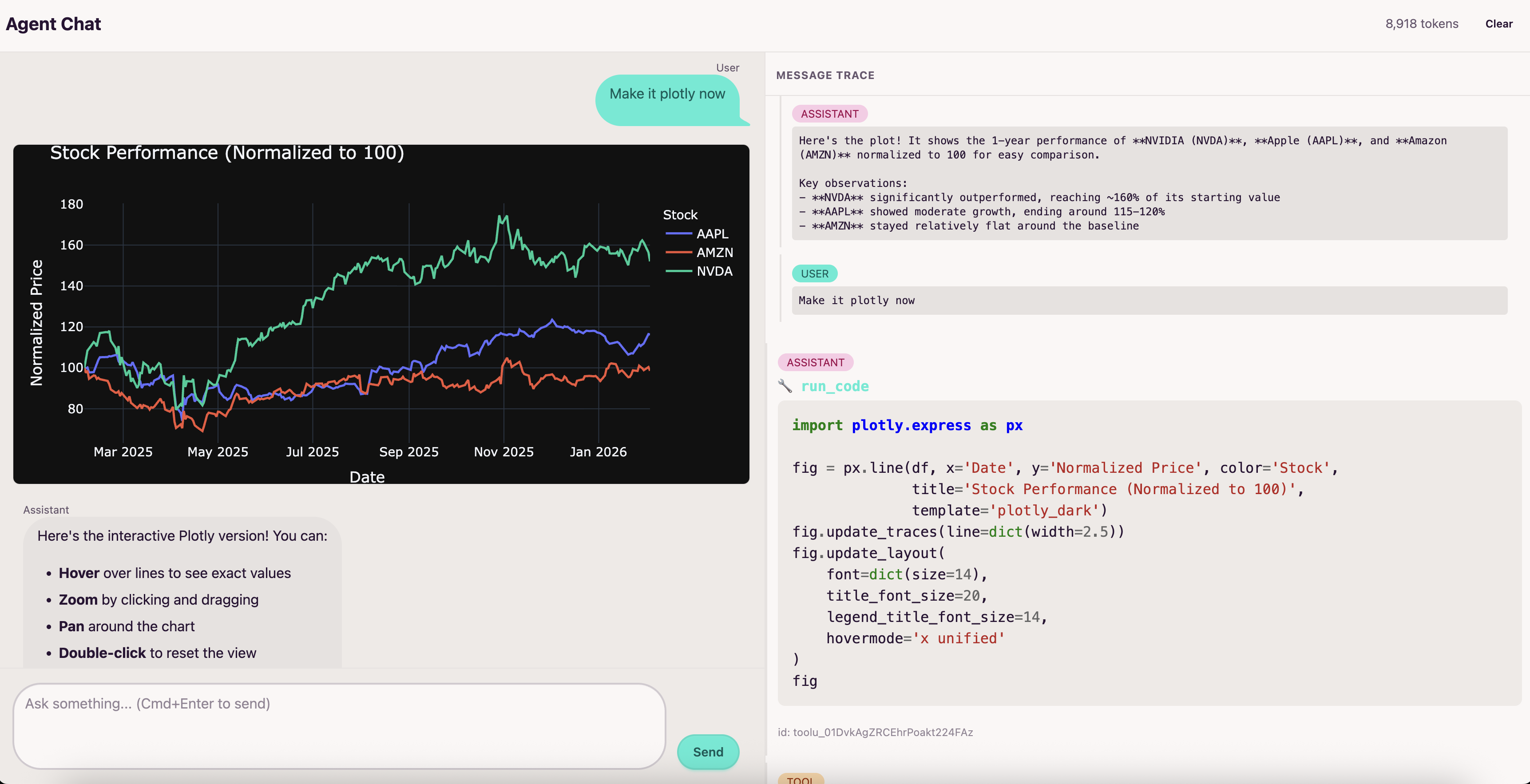
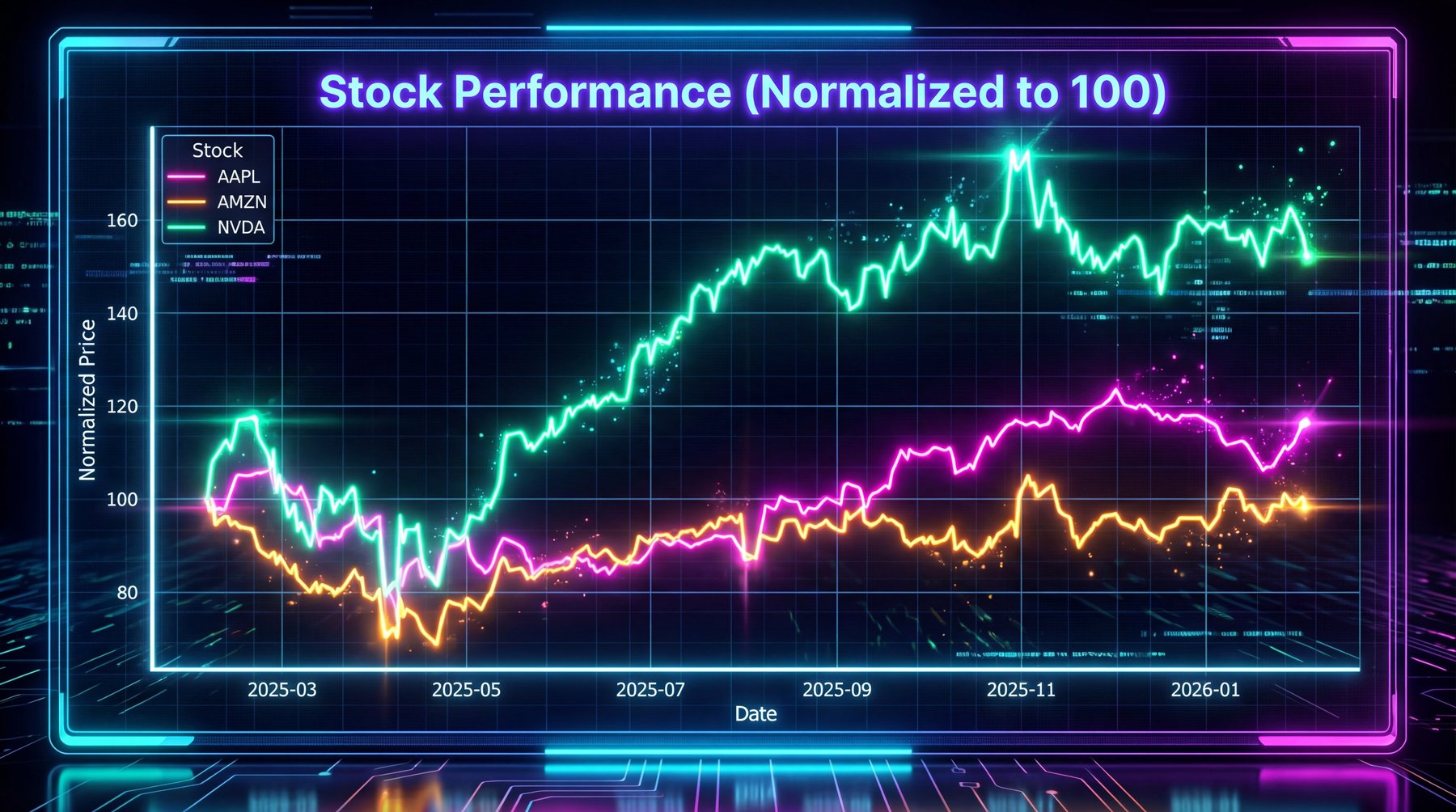
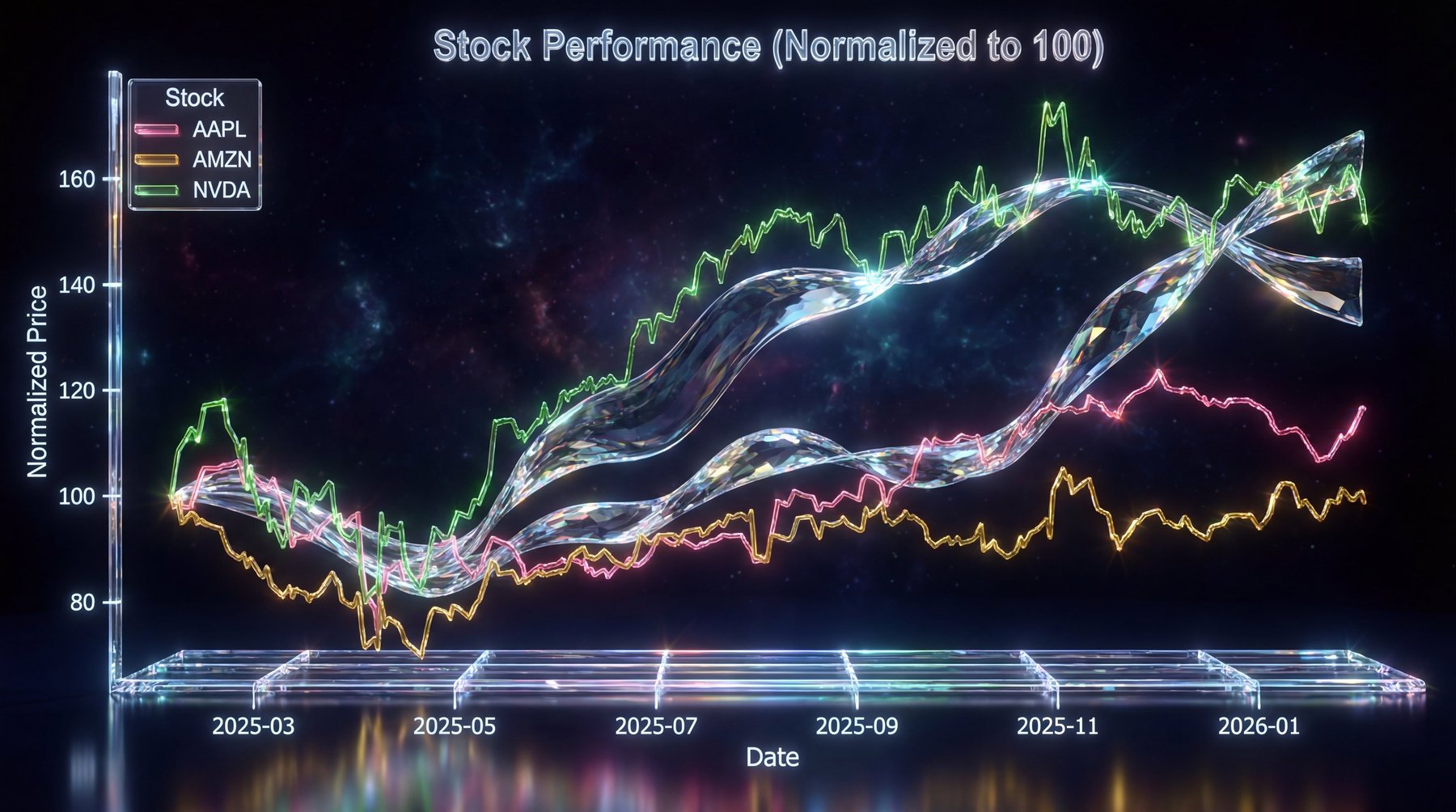
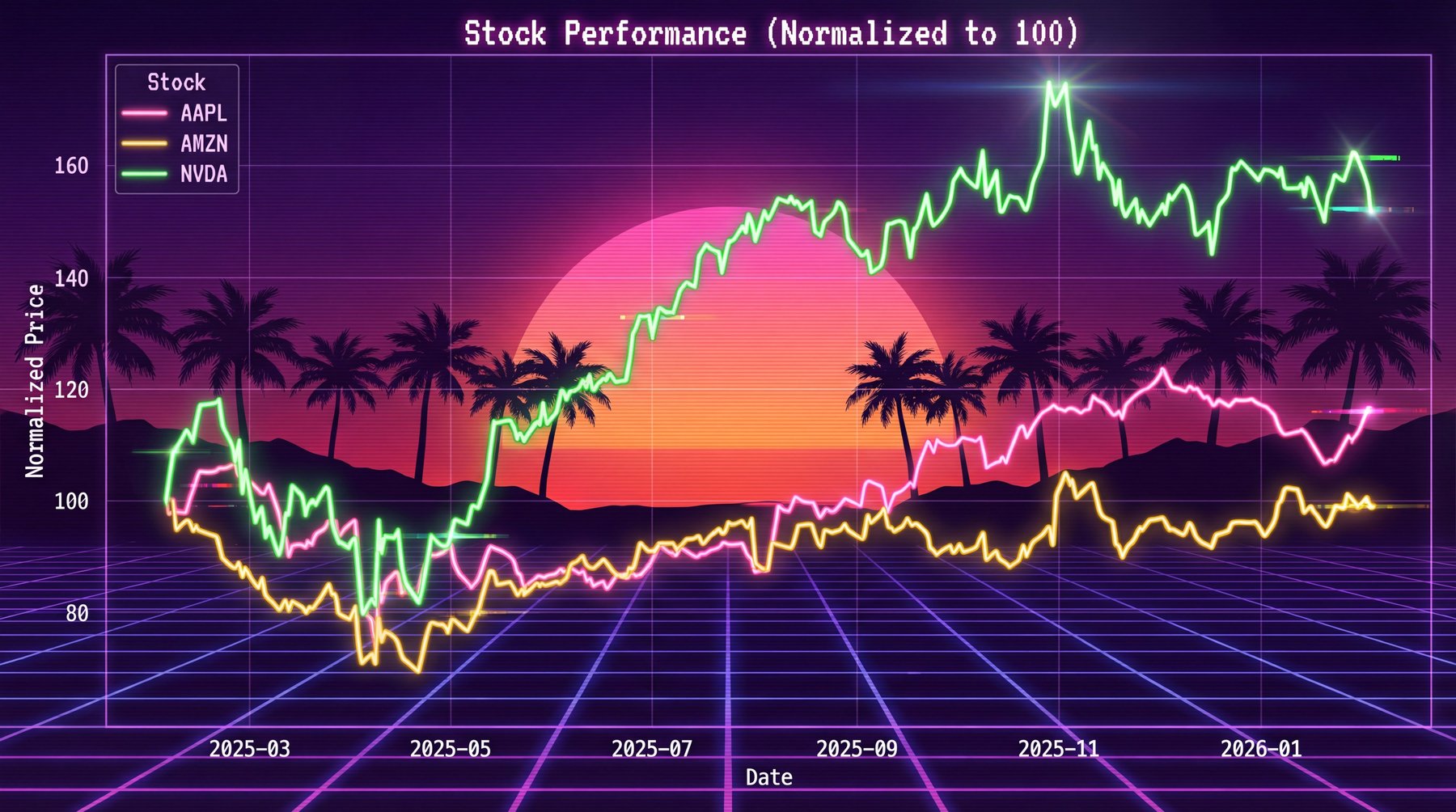
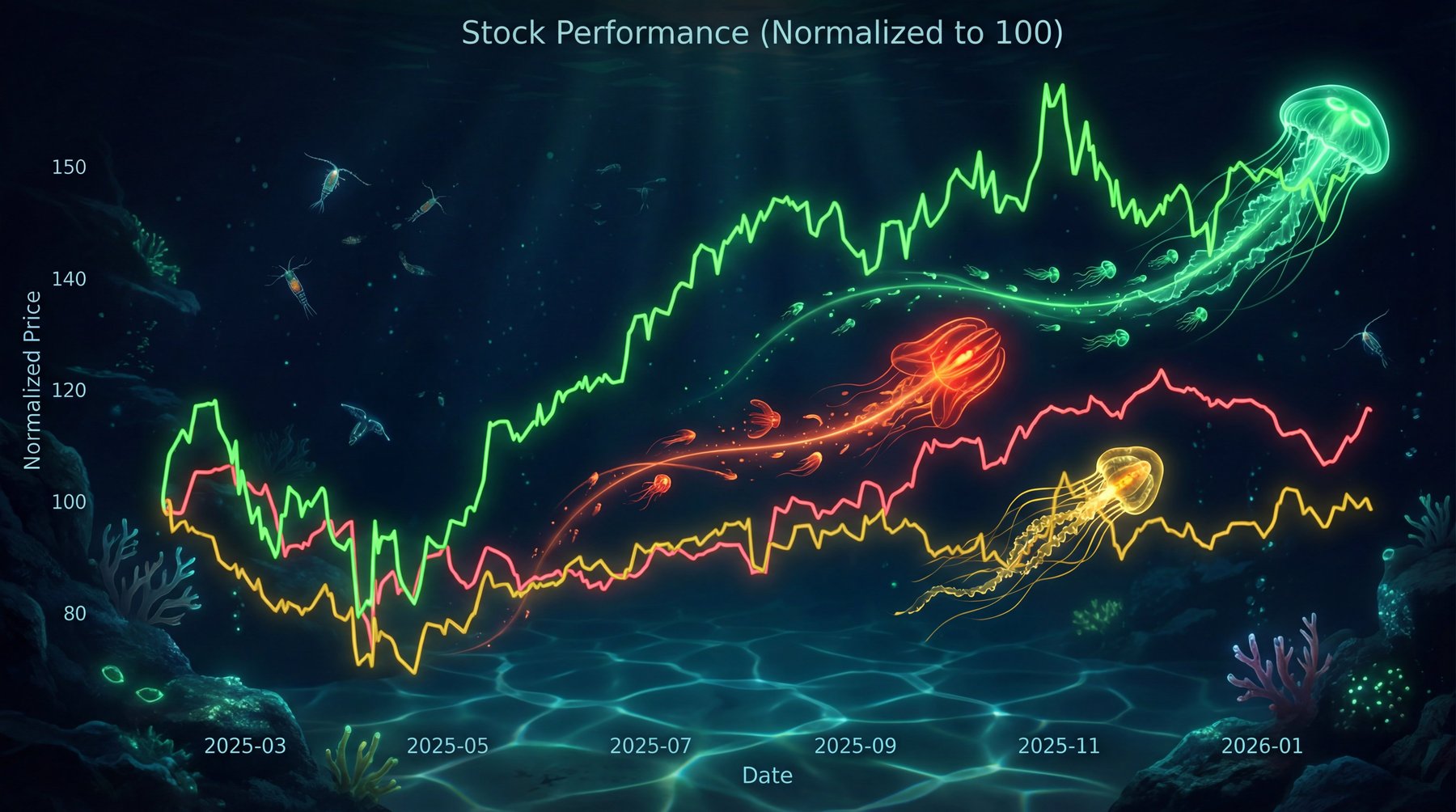
It can also generate images with Nano Banana (gemini-2.5-flash-image, gemini-3-pro-image-preview) which is always super fun. All that execution is happening in the cloud, so you don't have to worry about your local machine.
You can install whatever packages you need and the agent will have access to them.
The Minimal Agent Loop
The core agent is just a for loop with tools (agent.py). The gist of it is:
def run_agent(messages):
    while True:
        # Think: Call the LLM
        response = litellm.completion(model="...", messages=messages, tools=TOOLS)
        message = response.choices[0].message

        # Done if no tool calls
        if not message.tool_calls:
            return message.content

        # Act & Observe: Execute tools, append results
        messages.append(message)
        for tool_call in message.tool_calls:
            result = execute_tool(tool_call)
            messages.append({"role": "tool", "content": result, ...})
Bring your own Tools
The app currently has one tool: run_code. But adding new tools is straightforward (tools.py). You define the tool schema and implement the function:
TOOLS = [
    {
        "type": "function",
        "function": {
            "name": "run_code",
            "description": "Execute Python code in an isolated sandbox",
            "parameters": {
                "type": "object",
                "properties": {
                    "code": {"type": "string", "description": "Python code to execute"}
                },
                "required": ["code"],
            },
        },
    }
]

TOOL_FUNCTIONS = {
    "run_code": run_code,
}
Just add another entry to TOOLS and implement the function in TOOL_FUNCTIONS. The agent loop will pick it up automatically.
Each tool also has instructions that get injected into the system prompt (prompts.py). This is where you tell the agent how to use the tool, what packages are available, any quirks it should know about, etc. The run_code tool instructions explain things like "matplotlib figures are auto-captured" and "use Plotly for interactive charts".
Since arbitrary Python code execution is so powerful, you don't really need to add too many tools using the JSON schema tools. You can just use the sandbox to install packages and run code, and explain instructions to the agent on how to use the tools. For example, the image generation abilities are just python examples in the system prompt. Other useful tools such as web search or web scraping can simply be added as functions in the sandbox.
Multimodal Agent Tool Calling
The agent is multimodal and can see images returned by tools, using them to guide its next steps. The Modal sandbox runs a driver program that automatically captures any matplotlib/seaborn figures, and PIL Images from the executed code's globals. These get base64-encoded and returned to the agent, so it can analyze what it just created and iterate based on what it sees.
Sandbox Communication
Communicating reliably with a long-running Modal sandbox is tricky. Peyton from the Modal team suggested using file-based I/O instead of stdout, and I've used this pattern in production since (coding_sandbox.py).
The sandbox has a /modal/io/ directory where we write JSON back and forth:
# Write command to sandbox (with retry logic)
with sandbox.open("/modal/io/stdin.txt", "a") as f:
    f.write(json.dumps({"code": code, "command_id": command_id}))

# Poll for output file
out_file = f"/modal/io/{command_id}.txt"
with sandbox.open(out_file, "r") as f:
    result = json.load(f)
The driver program polls the stdin file, executes code, and writes results. This also enables sandbox reattachment via sandbox_id.
Auto-Capturing Visualizations
The driver program automatically captures plots and images. No need for plt.savefig(), manual encoding, or hosting images on S3. Everything is base64 encoded and passed directly in the message.
After each code execution, it captures matplotlib/seaborn figures, Plotly figures from globals(), and PIL Images. Matplotlib figures get base64-encoded as PNGs, Plotly figures become interactive HTML, and PIL images get resized/compressed to fit API limits.
Results get returned as content blocks:
result = [
    {"type": "text", "text": stdout_output},
    {"type": "image_url", "image_url": {"url": f"data:image/png;base64,{img}"}},
    {"type": "plotly_html", "html": plotly_html},
]
The image_url blocks go to the LLM so it can see matplotlib charts and PIL images. The plotly_html is for the UI to render interactive charts. The LLM doesn't see Plotly charts yet (needs kaleido for static export).
Streaming with HTMX and SSE
The UI streams updates in real-time using Server-Sent Events (main.py).
The flow:
- User submits a message via POST
- Server returns a "thinking" indicator and an SSE container
- Browser opens an SSE connection to
/agent-stream - Server streams updates as the agent works
- Each update swaps content into the page using HTMX's
hx-swap-oob
The SSE endpoint yields HTML fragments:
@app.get("/agent-stream")
async def agent_stream(request):
    async def event_generator():
        for msg in run_agent(messages):
            if is_token_update(msg):
                yield sse_message(TokenCountUpdate(msg["total"]), event="message")
            elif is_tool_result(msg):
                yield sse_message(ChatImages(msg), event="message")
                yield sse_message(TraceAppend(msg), event="message")
            elif is_final_response(msg):
                yield sse_message(ChatMessage("assistant", msg["content"]), event="message")
        yield sse_message("", event="close")

    return EventStream(event_generator())
The key is out-of-band swaps (hx-swap-oob="true"). Normally HTMX replaces a single target, but OOB lets you update multiple parts of the page from one response. A single SSE message can update the chat, the trace panel, and the token counter simultaneously. No JavaScript needed.
Per-User Sandbox Isolation
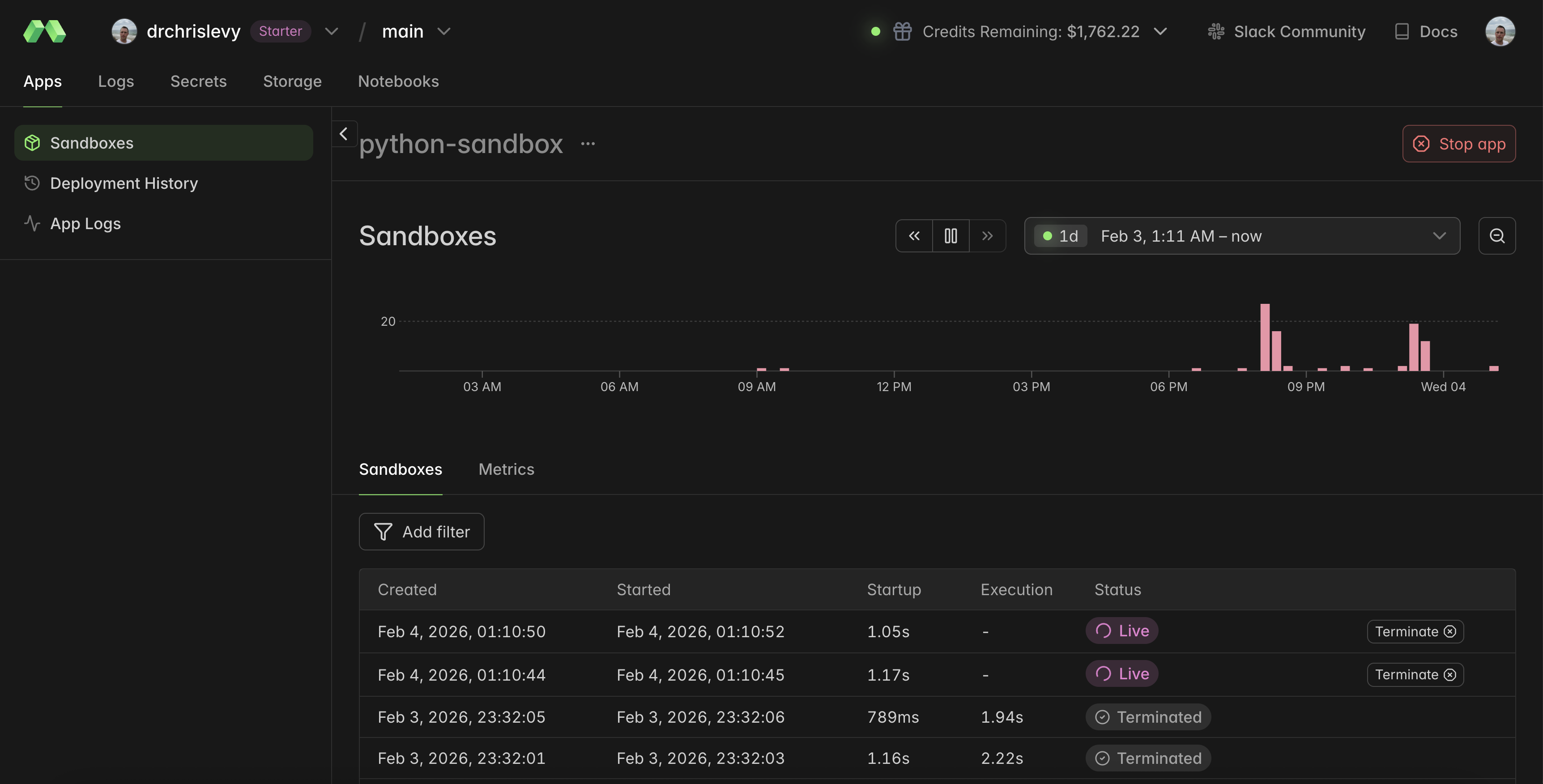
Each user gets their own isolated sandbox using session cookies and contextvars:
current_user_id: ContextVar[str] = ContextVar("current_user_id")

# 30-min TTL matches the configured Modal sandbox timeout
user_sandboxes: TTLCache[str, ModalSandbox] = TTLCache(maxsize=1000, ttl=1800)

def get_sandbox(user_id: str) -> ModalSandbox:
    if user_id not in user_sandboxes:
        user_sandboxes[user_id] = ModalSandbox()
    return user_sandboxes[user_id]
The sandbox persists across messages in a session (variables and imports carry over), but gets cleaned up after 30 minutes of inactivity or on page refresh.
UI Details
Markdown is rendered server-side using mistletoe + Pygments for syntax highlighting (markdown.py). No client-side JS. Tailwind classes get applied via lxml after rendering.
Changing the theme is one line—DaisyUI has 30+ themes built in:
app, rt = fast_app(
    htmlkw={"data-theme": "cupcake"},  # or "dark", "forest", "synthwave", etc.
)
What's Next
Some ideas:
- More tools (either as JSON schema tools or simply more functions/libraries in the sandbox)
- Conversation persistence
- streaming of tokens
Clone it, add your own tools, swap out the LLM. Play around with it.